Filtratge de programes
Un cop el robot ha estat calibrat, teniu diferents maneres d'utilitzar el calibratge del robot:
●Filtreu els programes existents: totes les destinacions del robot dins d'un programa es modifiquen per millorar la precisió del robot. Es pot fer manualment o mitjançant l'API.
●Utilitzeu RoboDK per a la programació fora de línia per generar programes precisos (els programes generats ja estan filtrats, inclosos els programes generats mitjançant l'API).
Per filtrar manualment un programa existent: arrossegueu i deixeu anar el fitxer del programa del robot a la pantalla principal de RoboDK (o seleccioneu Fitxer➔Obre) i seleccioneu Només filtra. El programa es filtrarà i s'enregistrarà a la mateixa carpeta. El resum del filtre indicarà si hi ha hagut cap problema en utilitzar l'algorisme de filtratge. També teniu l'opció d'importar un programa si el voleu simular dins de RoboDK. Si el programa té qualsevol dependència (definicions del sistema de referència de l'eina o del sistema de referència base, subprogrames, ...), s'han de trobar al mateix directori on s'ha importat el primer programa.
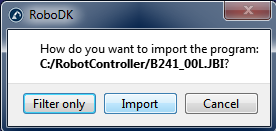
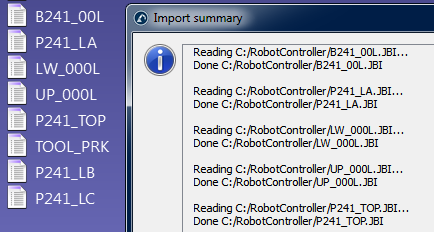
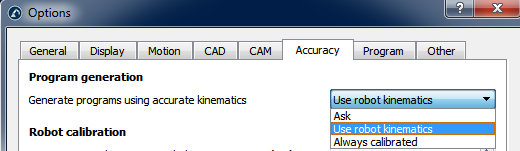
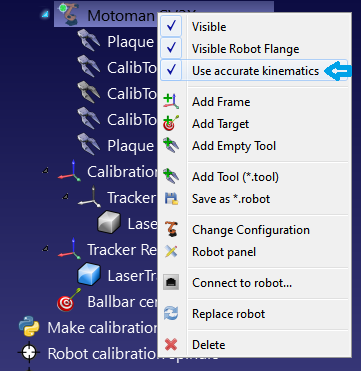
Un cop importeu el programa a RoboDK, el podeu regenerar amb o sense precisió absoluta. A la configuració principal de precisió de RoboDK (Eines→Opcions→Precisió) podeu decidir si voleu generar sempre els programes amb cinemàtica precisa, si voleu que RoboDK us ho pregunti cada vegada o si voleu utilitzar la cinemàtica actual del robot. La cinemàtica actual del robot es pot canviar fent clic amb el botó dret al robot i activant/desactivant l'etiqueta «Use accurate kinematics». Si està activa, veureu un punt verd; si no ho està, veureu un punt vermell.
Filtreu programes mitjançant l'API
És possible filtrar un programa complet amb RoboDK donat un robot calibrat i el programa del robot mitjançant la crida FilterProgram:
robot.FilterProgram(file_program)
Un exemple de macro anomenat FilterProgram està disponible a la secció Macros de la biblioteca. El codi següent és un script d'exemple en Python que utilitza l'API de RoboDK per filtrar un programa.
from robolink import * # API to communicate with RoboDK
from robodk import * # basic matrix operations
import os # Path operations
# Get the current working directory
CWD = os.path.dirname(os.path.realpath(__file__))
# Start RoboDK if it is not running and link to the API
RDK = Robolink()
# optional: provide the following arguments to run behind the scenes
#RDK = Robolink(args='/NOSPLASH /NOSHOW /HIDDEN')
# Get the calibrated station (.rdk file) or robot file (.robot):
# Tip: after calibration, right click a robot and select "Save as .robot"
calibration_file = CWD + '/KUKA-KR6.rdk'
# Get the program file:
file_program = CWD + '/Prog1.src'
# Load the RDK file or the robot file:
calib_item = RDK.AddFile(calibration_file)
if not calib_item.Valid():
raise Exception("Something went wrong loading " + calibration_file)
# Retrieve the robot (no popup if there is only one robot):
robot = RDK.ItemUserPick('Select a robot to filter', ITEM_TYPE_ROBOT)
if not robot.Valid():
raise Exception("Robot not selected or not available")
# Activate accuracy
robot.setAccuracyActive(1)
# Filter program: this will automatically save a program copy
# with a renamed file depending on the robot brand
status, summary = robot.FilterProgram(file_program)
if status == 0:
print("Program filtering succeeded")
print(summary)
calib_item.Delete()
RDK.CloseRoboDK()
else:
print("Program filtering failed! Error code: %i" % status)
print(summary)
RDK.ShowRoboDK()
Filtreu objectius mitjançant l'API
El codi següent és un exemple de script Python que utilitza l'API de RoboDK per filtrar un objectiu (objectiu de posa o objectiu d'articulació), mitjançant la comanda FilterTarget:
pose_filt, joints = robot.FilterTarget(nominal_pose, estimated_joints)
Aquest exemple és útil si una aplicació de tercers (diferent de RoboDK) genera el programa del robot utilitzant objectius de posa.
from robolink import * # API to communicate with RoboDK
from robodk import * # basic matrix operations
def XYZWPR_2_Pose(xyzwpr):
return KUKA_2_Pose(xyzwpr) # Convert X,Y,Z,A,B,C to a pose
def Pose_2_XYZWPR(pose):
return Pose_2_KUKA(pose) # Convert a pose to X,Y,Z,A,B,C
# Start the RoboDK API and retrieve the robot:
RDK = Robolink()
robot = RDK.Item('', ITEM_TYPE_ROBOT)
if not robot.Valid():
raise Exception("Robot not available")
pose_tcp = XYZWPR_2_Pose([0, 0, 200, 0, 0, 0]) # Define the TCP
pose_ref = XYZWPR_2_Pose([400, 0, 0, 0, 0, 0]) # Define the Ref Frame
# Update the robot TCP and reference frame
robot.setTool(pose_tcp)
robot.setFrame(pose_ref)
# Very important for SolveFK and SolveIK (Forward/Inverse kinematics)
robot.setAccuracyActive(False) # Accuracy can be ON or OFF
# Define a nominal target in the joint space:
joints = [0, 0, 90, 0, 90, 0]
# Calculate the nominal robot position for the joint target:
pose_rob = robot.SolveFK(joints) # robot flange wrt the robot base
# Calculate pose_target: the TCP with respect to the reference frame
pose_target = invH(pose_ref)*pose_rob*pose_tcp
print('Target not filtered:')
print(Pose_2_XYZWPR(pose_target))
joints_approx = joints # joints_approx must be within 20 deg
pose_target_filt, real_joints = robot.FilterTarget(pose_target, joints)
print('Target filtered:')
print(real_joints.tolist())
print(Pose_2_XYZWPR(pose_target_filt))


