Using the Editor
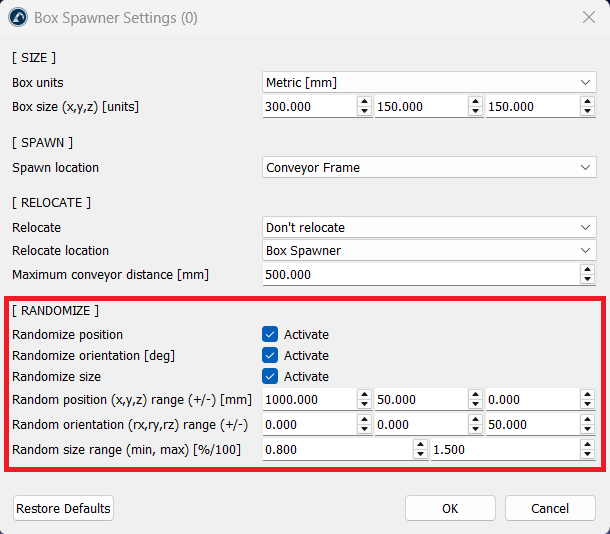
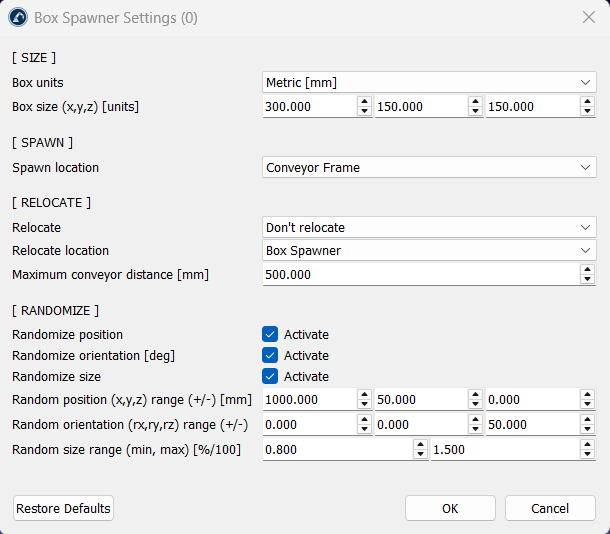
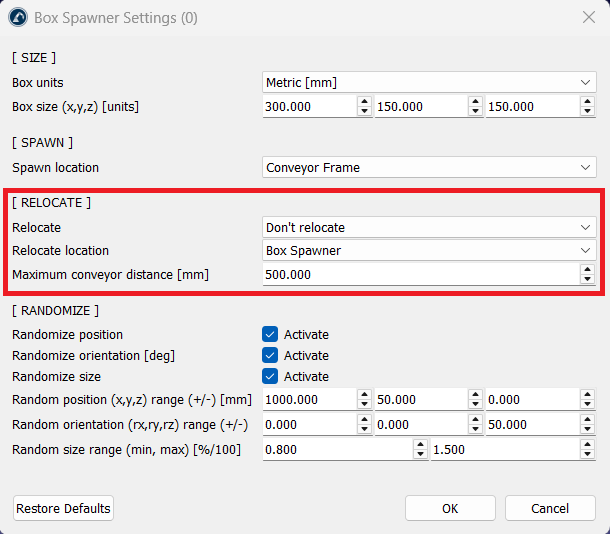
You can find the Box Spawner configuration settings by clicking on Utilities ➔ Box Spawner ➔ Edit Spawner(s) section. The settings are organized into four sections: Size, Spawn, Relocation, and Randomization. It features a dynamic frame list that refreshes based on your active station, ensuring you only select valid items for spawn and relocation targets.
Size and Units
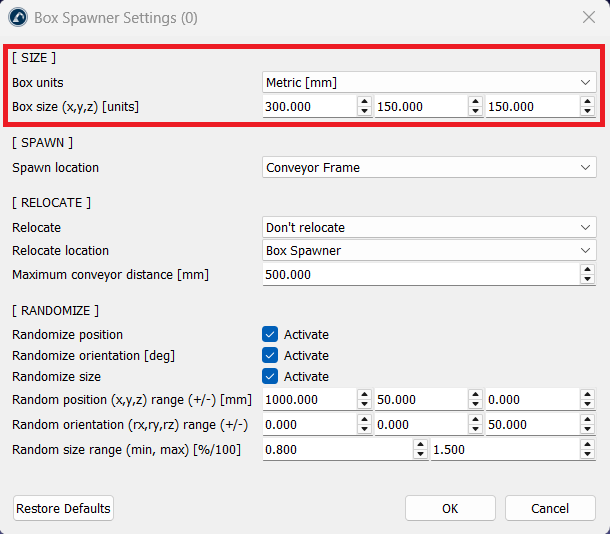
Users can define the physical properties of the generated boxes to match specific project requirements.
The parameters include:
1.Unit Systems: Supports both Metric (mm) and Imperial (in) systems.
2.Base Dimensions: Allows input of specific X, Y, and Z values to determine the volume of the box.
Spawn Location
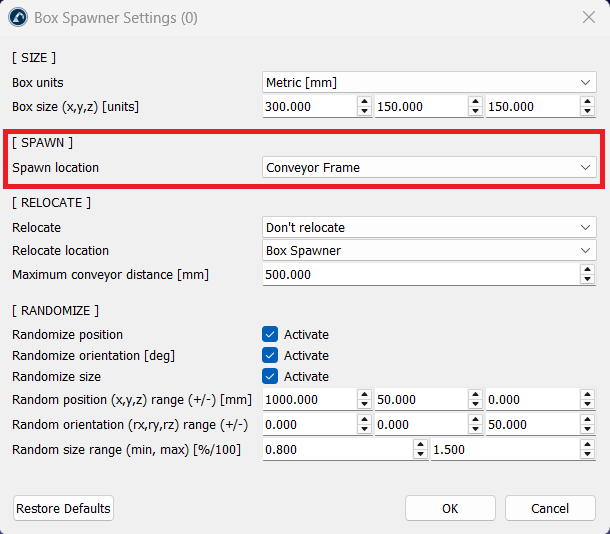
The add-in uses a hierarchical approach to placement which includes input in the following way:
1.Reference Frame: You can designate a specific coordinate system (Frame) or the Station itself as the "Spawn Location".
Relocation and Conveyor Attachment
This feature allows objects to transition from their spawn point to a moving mechanism automatically using the following options:
1.Relocation Modes:
a.Closest Conveyor: Automatically detects and attaches the box to the nearest conveyor mechanism.
b.Specific Location: Transfers the box to a secondary pre-defined frame immediately after creation.
2.Distance Threshold: You can set a Maximum Conveyor Distance (default: 500mm). The box will only attach to a conveyor if it is within this range.
Randomization Logic
To simulate real-world variability and "noise", the add-in offers three layers of randomization:
1.Position: Randomly offsets the box within a user-defined +/- X, Y, Z range.
2.Orientation: Randomizes the rotation (Rx, Ry, Rz) in degrees, useful for simulating misaligned items on a belt.
3.Scale: Adjusts the overall size of the box based on a minimum and maximum percentage factor (e.g., 0.6 to 1.0).