Box Spawner
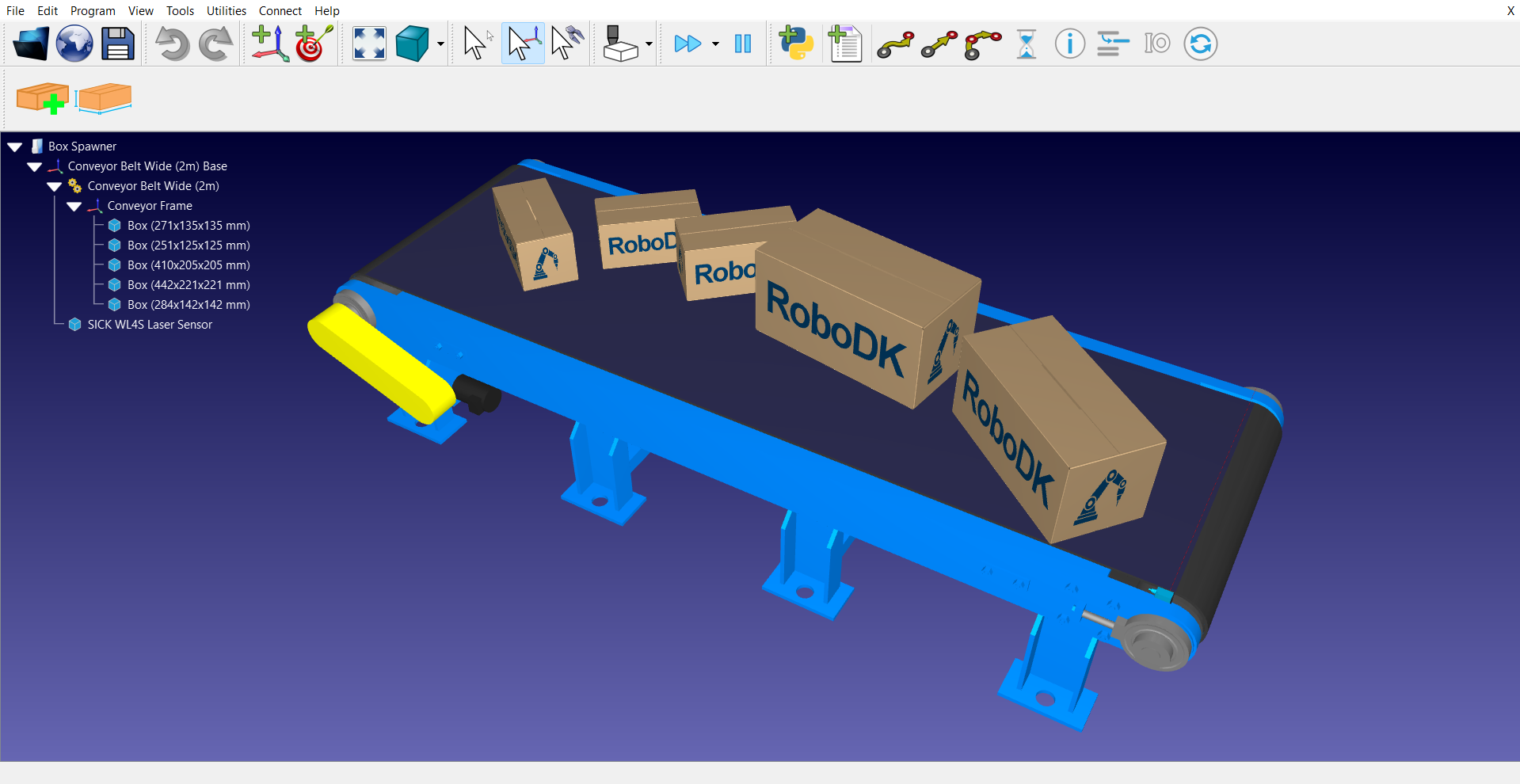
The Box Spawner Add-in for RoboDK is a productivity tool designed to programmatically generate 3D box objects within a station. This Add-in provides tools to automate the creation, scaling, and placement of components, making it ideal for simulating pick-and-place, palletizing, or conveyor-fed applications.
The Box Spawner Add-in can also be used to customize spawner locations, box dimensions, and randomization parameters through a Python script, which can be triggered directly from a RoboDK Program.
The Add-in supports multiple spawner locations by utilizing a spawner ID in program calls.
Installation
You can find and install the Box Spawner Add-in from the RoboDK Add-ins Library.
Once installed, the Add-in integrates into the RoboDK interface, enabling both manual control through a UI and automated triggers via station scripts.
Using the Editor
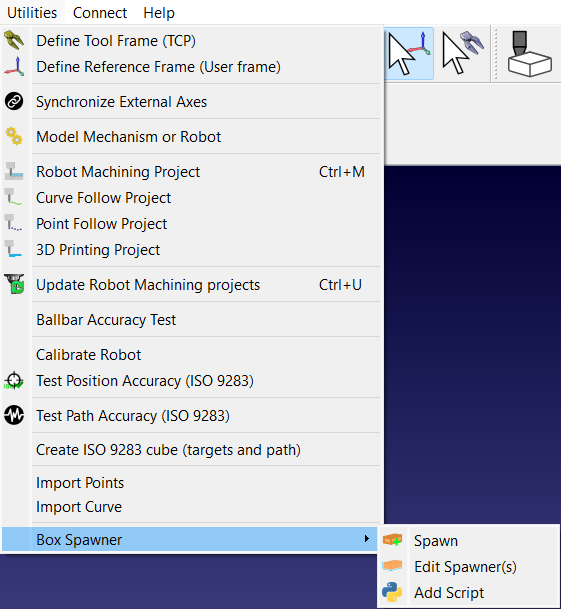
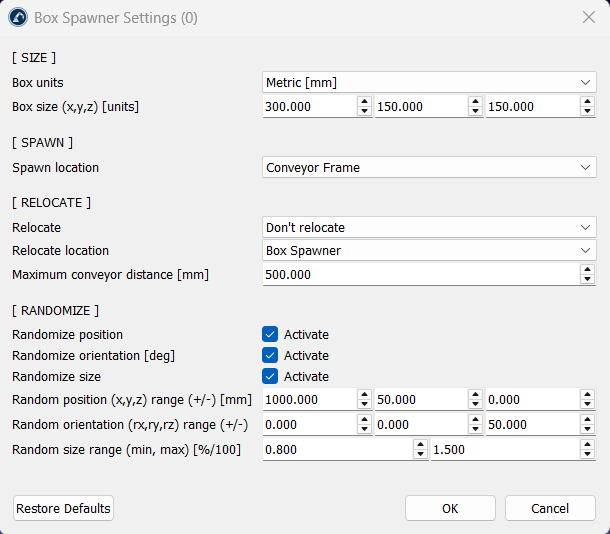
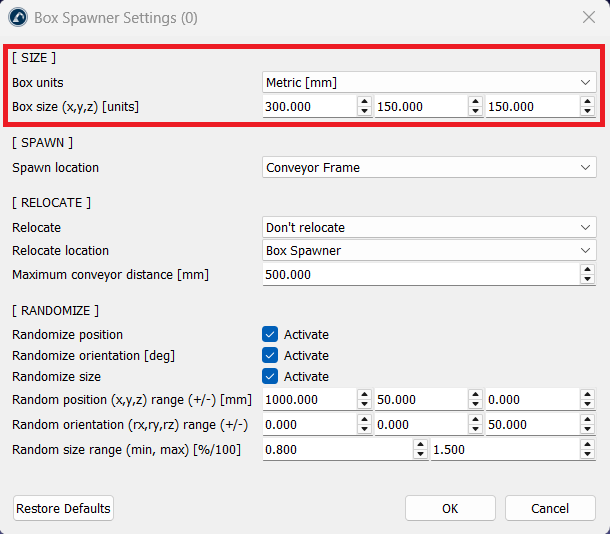
You can find the Box Spawner configuration settings by clicking on Utilities ➔ Box Spawner ➔ Edit Spawner(s) section. The settings are organized into four sections: Size, Spawn, Relocation, and Randomization. It features a dynamic frame list that refreshes based on your active station, ensuring you only select valid items for spawn and relocation targets.
Size and Units
Users can define the physical properties of the generated boxes to match specific project requirements.
The parameters include:
1.Unit Systems: Supports both Metric (mm) and Imperial (in) systems.
2.Base Dimensions: Allows input of specific X, Y, and Z values to determine the volume of the box.
Spawn Location
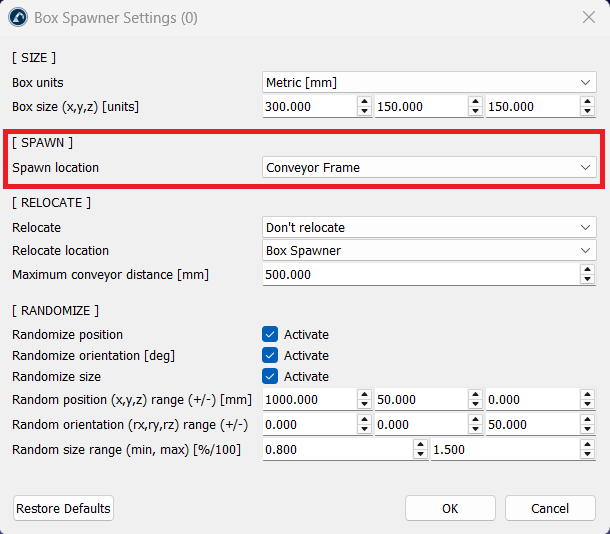
The add-in uses a hierarchical approach to placement which includes input in the following way:
1.Reference Frame: You can designate a specific coordinate system (Frame) or the Station itself as the "Spawn Location".
Relocation and Conveyor Attachment
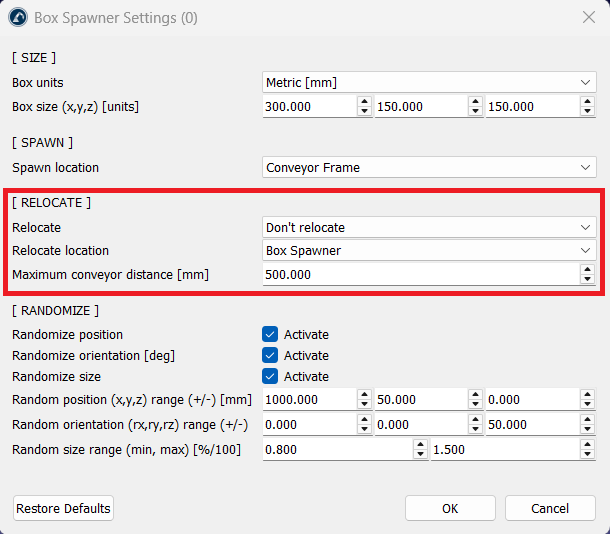
This feature allows objects to transition from their spawn point to a moving mechanism automatically using the following options:
1.Relocation Modes:
a.Closest Conveyor: Automatically detects and attaches the box to the nearest conveyor mechanism.
b.Specific Location: Transfers the box to a secondary pre-defined frame immediately after creation.
2.Distance Threshold: You can set a Maximum Conveyor Distance (default: 500mm). The box will only attach to a conveyor if it is within this range.
Randomization Logic
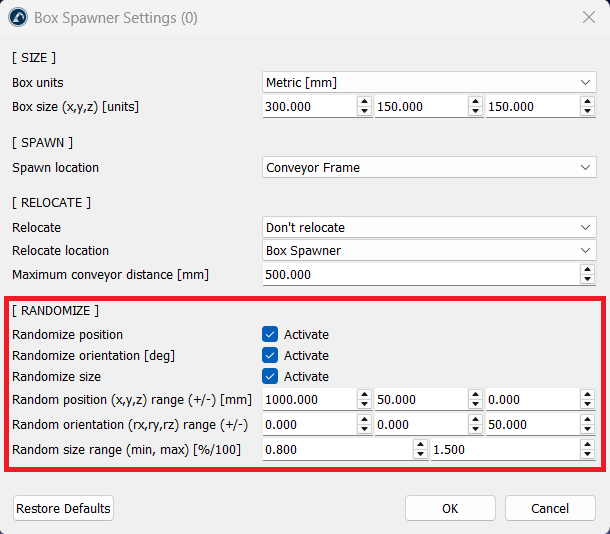
To simulate real-world variability and "noise", the add-in offers three layers of randomization:
1.Position: Randomly offsets the box within a user-defined +/- X, Y, Z range.
2.Orientation: Randomizes the rotation (Rx, Ry, Rz) in degrees, useful for simulating misaligned items on a belt.
3.Scale: Adjusts the overall size of the box based on a minimum and maximum percentage factor (e.g., 0.6 to 1.0).
Multiple Spawner Profiles
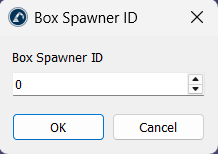
The Add-in supports Multi-ID configurations. By assigning different IDs (e.g., ID 1 for "Large Boxes" and ID 2 for "Small Boxes"), you can save unique settings for each. Calling a specific ID in your program will execute the exact parameters saved for that profile.
Manual vs. Programmatic Execution
There are two primary ways to utilize the Add-in: using the UI and through a program call.
1.UI Trigger: Use the Spawn button in the RoboDK toolbar to create a box instantly using the current settings (defaulting to Spawner ID #0).
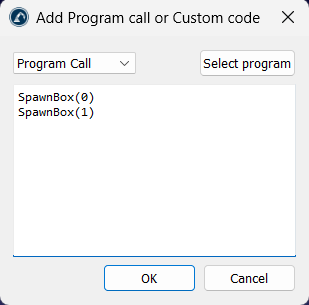
2.Program Call: For full automation, use the Add Script feature. This inserts a python file named SpawnBox into your station. You can then add the given command to any RoboDK Program in order to integrate the box spawning into your program flow:
Call SpawnBox(ID)