File Menu
Manage your robotic project data by importing and exporting CAD paths, CSV coordinate files, and SVG vectors for hassle-free path loading.
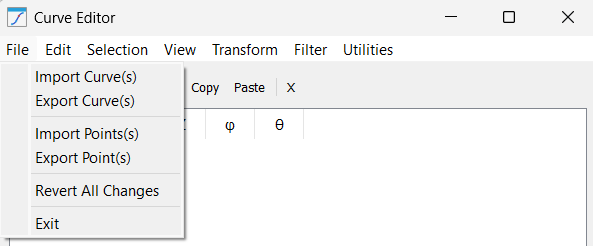
This menu manages the lifecycle of your curve/point data with the help of the following tools:
1.Import Curve(s): This tool allows you to bring in complex tool paths from various formats, including CSV, SVG, and DXF. When importing, the system automatically attempts to parse the structure and generate distinct curve items in the editor tree based on the file’s internal layers or groups.
2.Export Curve(s): Use this to save your refined work. It extracts all current geometric data, including coordinates and normal vectors, into a standardized CSV or TXT file. This is vital for version control or for transferring paths between different RoboDK stations.
3.Import Point(s): Unlike importing entire curves, this function allows you to inject standalone points into an existing selection. It is primarily used for manually "patching" holes in a tool path or adding specific approach/retract points that were not present in the original CAD file. Another application with points is where you have a drilling project and the position of holes to be drilled is represented by coordinate points.
4.Export Point(s): This provides a raw data dump of specific selected coordinates. It is highly useful when you need to extract specific target values for documentation, external spreadsheet analysis, or for use in high-level script programming.
5.Revert All Changes: A safety feature that acts as a global "undo". It reloads the curve data as it existed at the start of the session, discarding all filters, offsets, and transformations performed in the editor since the last save or import.
6.Exit: Safely terminates the Curve Utilities session and returns to the main 3D simulation environment.


