Selection Menu
Quickly organize your workflow by highlighting specific curves or points and re-ordering them to define the robot's execution sequence.
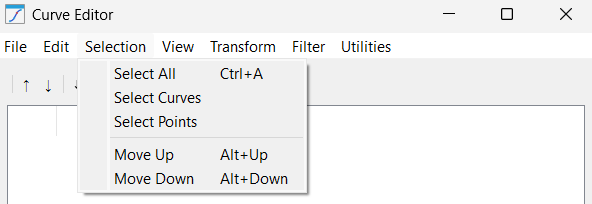
These functions allow for easy control over data selection, which is critical before applying filters or transformations:
1.Select All: Highlights every single point and curve object currently loaded in the session. Use this when you need to apply a global transformation, such as an XYZ offset, to the entire project.
2.Select Curves: A filter that selects only the "Curve" containers in the tree. This is helpful when you want to move or sort the path segments as complete units rather than individual points.
3.Select Points: A filter that selects only the "Point" rows within the table. This is standard for applying smoothing or resampling algorithms that only operate on coordinate lists.
4.Move Up: Shifts the selected item one position higher in the list. This directly changes the robot’s execution order, forcing it to visit that specific point or segment earlier in the program sequence.
5.Move Down: Shifts the selected item one position lower. This is typically used to move retract points to the very end of a curve to ensure the robot clears the part safely.


