Item Utilities
The Item Utilities Add-in contains a set of features that helps manage and change different items in the virtual RoboDK station. It provides automated scripts to swap parts, resize shapes, and lock objects onto moving robot parts without forcing users to manually rebuild the station tree.
Installation
You can install the Item Utilities Add-in from the Add-in marketplace. You can also install it from RoboDK itself: select Tools ➔ Add-in Manager (Shift+A), then find and enable the Item Utilities Add-in.
Once the Add-in is enabled, its actions are grouped under Utilities ➔ Item Utilities in the menu bar. The same actions are also available by right-clicking an item in the 3D view or in the station tree, under an Item Utilities submenu. Each action only appears on the item types it supports, so right-clicking an object offers Replace Object..., Attach Object To Robot Link, Scale Object and Simplify Object, while Replace Robot... only appears on a robot. Reference frames, targets and programs have no Item Utilities entry.
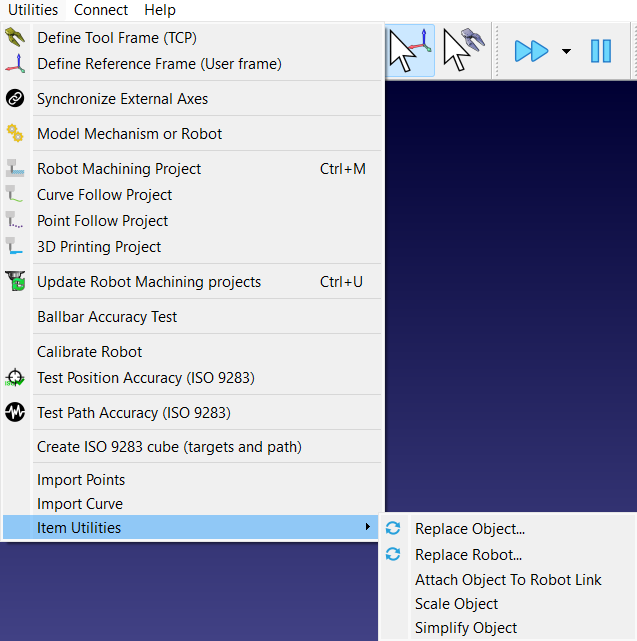
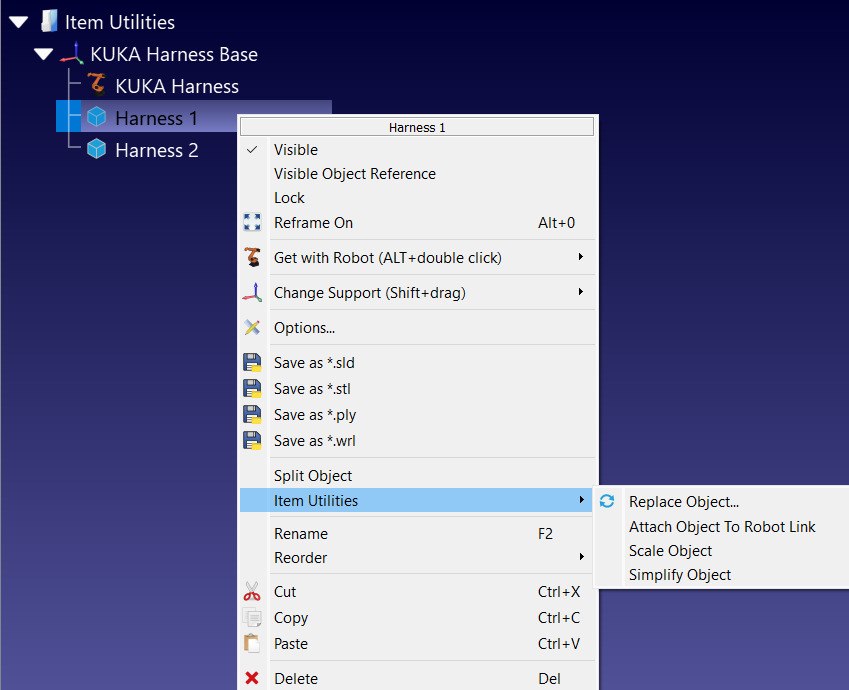
Main Features
The features in this Add-in provide quick visual modifications and layout adjustments. Instead of wasting time deleting, re-importing, and manually repositioning items when changes happen, these tools automate the swapping and resizing processes while keeping all existing programming paths completely intact.
Replace Object
This action replaces an existing object with a 3D file from disk. RoboDK asks you for the replacement file, imports it under the same parent as the original, gives it the original’s pose so it lands in exactly the same place, and then deletes the original. Any machining, curve-follow or 3D-printing project that pointed at the old object is re-linked to the new one. Supported formats are the ones RoboDK can import, including .sld, .stl, .step/.stp, .iges/.igs, .obj, .3ds, .dae, .blend and .wrl.
Replace Robot
This action replaces a robot with a different robot model while keeping the rest of the station intact. The new robot is placed under the same reference frame, the tools of the old robot are moved onto the new one, and every target, program and machining project that referenced the old robot is re-linked to the new one and recalculated.
Attach Object to Robot Link
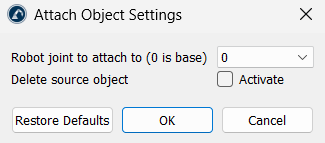
This utility permanently locks an object onto a specific moving joint or link of a robot arm. The selected object becomes a permanent part of the robot arm and moves along with that specific joint during simulation. You can choose any moving link, from the base (Joint 0) up to the mounting plate at the end of the arm.
Scale Object
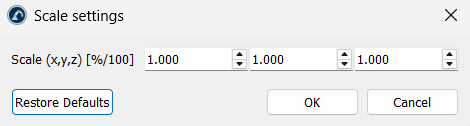
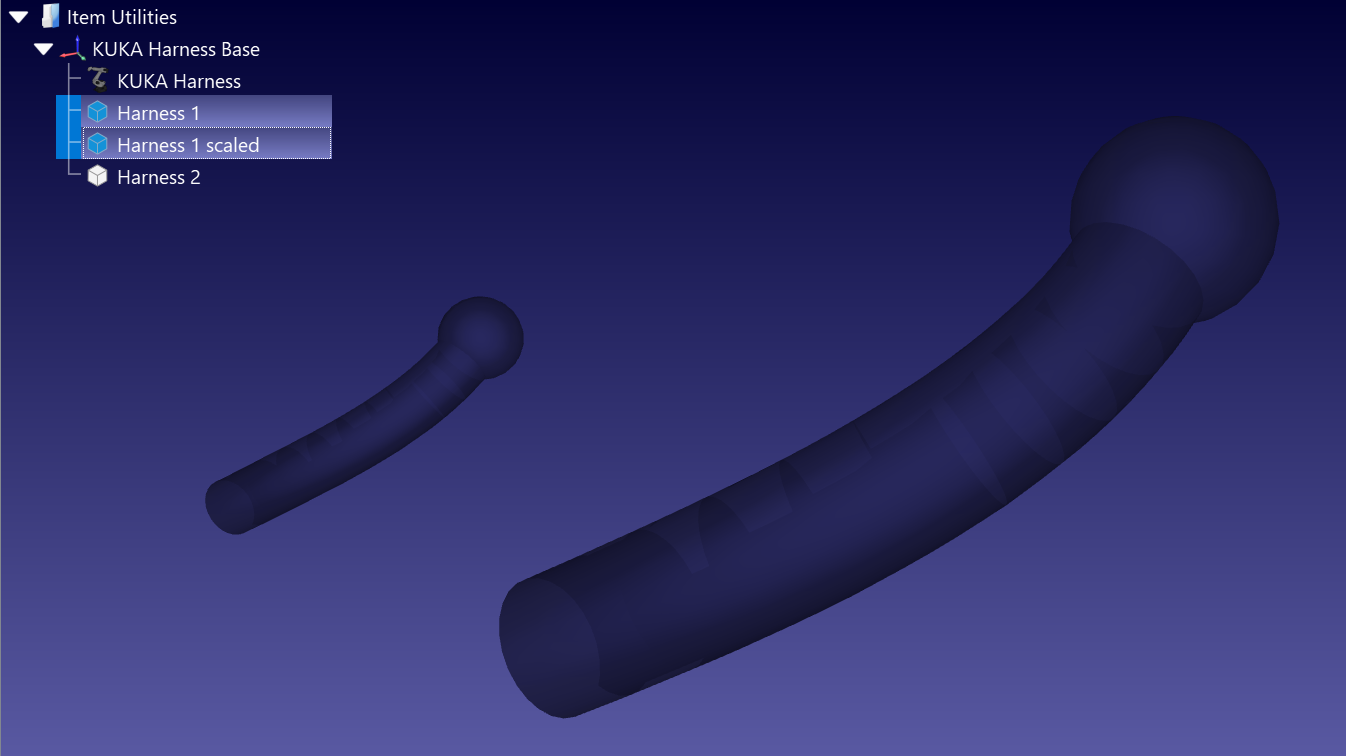
This action resizes objects and curves. Enter one factor per axis in the Scale (x,y,z) field to scale evenly or to stretch the model along X, Y or Z independently. The factors are plain ratios applied from the item’s own origin: 1 leaves the size unchanged, 2 doubles it and 0.001 converts millimetres to metres. Several objects or curves can be selected and scaled at once.
Simplify Object
This action reduces the mesh of heavy 3D models so that collision checking, path calculation and simulation stay fast. RoboDK filters the mesh and discards the parts that carry no useful geometry: sub-shapes smaller than a given size, triangles with a surface below a given area, and sliver triangles whose smallest angle is below a given value. It works on objects and curves, and also on robots and tools.
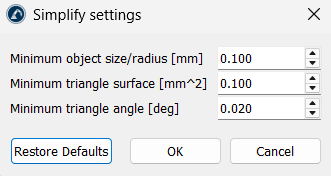
The three thresholds are editable. Minimum object size/radius [mm] defaults to 0.1, Minimum triangle surface [mm^2] defaults to 0.1 and Minimum triangle angle [deg] defaults to 0.02. Raise them to simplify more aggressively.
Tips and Best Practices
1.When replacing robots or objects, make sure only the intended item is selected in the station or station tree. If multiple items are selected by accident, the Add-in will try to process all of them at once.
2.None of these actions can be undone from the Add-in: Replace Object... and Replace Robot... delete the original item, Attach Object To Robot Link merges the geometry permanently, and Scale Object and Simplify Object modify the mesh in place. Save your station before you run any of them.
3.Even though the Add-in updates paths automatically after using Replace Robot, a smaller robot might not physically reach the old targets. Always verify programs manually after a swap to check for any unreachable target errors.
4.The settings of Attach Object To Robot Link, Scale Object and Simplify Object are stored inside the station file, not in your RoboDK preferences. The same action can therefore start with different values in two open stations. Use Restore Defaults in the dialog to go back to the standard values.


