Using Point Utilities
The Point Utilities Add-in uses the RoboDK API to read the exact 3D math of objects when you interact with them using your mouse.
Surface Clicking and Normals
Clicking on a 3D model when the tool is active prompts the software to look at the exact triangle on the 3D mesh under the mouse. It extracts two main pieces of data:
1.The Position (X, Y, Z): The exact location in millimeters relative to the object's reference frame.
2.The Normal Vector (I, J, K): A directional vector that points 90 degrees from the surface at that specific spot.
The add-in uses this normal vector to determine how a tool should approach the object.
Add Point(s) On Surface
Add points to the workspace by clicking on 3D models. The script runs a continuous check using a mouse-click listener loop. Every time a user left-clicks on an object mesh, surface data is captured.
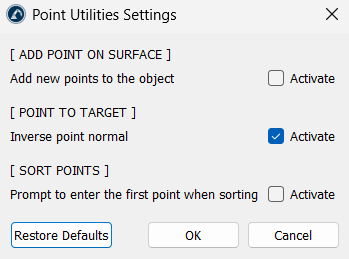
In the app settings, the location of these points can be altered. Activating Add new points to the object embeds the points directly into the selected 3D model's file structure. Deactivating it creates standalone point items in the station tree, automatically named with their exact coordinates.
Convert Point(s) To Target(s)
Static points cannot be moved to by a robot movement instruction. Hence, the convert point to targets action converts basic coordinate points into functional RoboDK targets in the station tree.
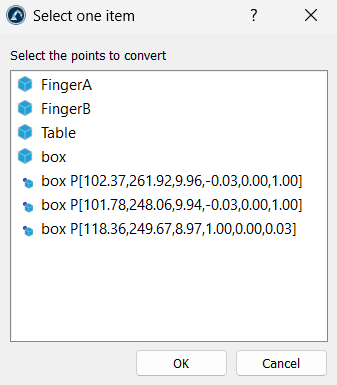
To convert a point to a target, select the point(s) and simply click on the Convert Point(s) To Target(s) option. If the option is clicked without pre-selecting points, a window pops up, allowing you to select the desired points.
The script reads the point's normal vector (I, J, K) and uses it to align the local Z-axis of the new target. This tells the robot which way the tool should face when it reaches that point.
By default, a surface normal points away from the object, which can cause a robot tool to face backward. To fix this, the script includes an Inverse point normal setting (in Utilities ➔ Point Utilities ➔ Settings). When checked, the script multiplies the vector coordinates by "-1", flipping the direction so the robot tool points directly into the surface.
Sort Points
When importing a point cloud or clicking points manually, they are saved in a specific list order. If they are not in geographical order, the robot will jump across the part, risking hardware damage.
The sorting script creates a clean copy of the object and clears the point order. It looks at the first point, calculates the physical distance to all other remaining points, and picks the absolute closest one as the next step. It repeats this loop until every point is sorted by proximity.
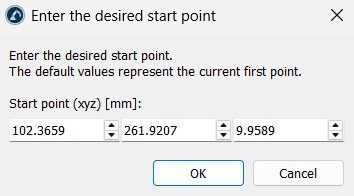
Activating Prompt to enter the first point when sorting in the settings (Utilities ➔ Point Utilities ➔ Settings) opens a dialog box before running. Here, type in an X, Y, Z location to decide exactly where the robot path starts.
Surface Information (Click On Surface)
This option figures out the exact shapes and properties of 3D models. Clicking on a part of an object prompts the script to grab a cluster of mesh triangles surrounding the mouse click. It sends these points to a background solver, which evaluates the curvature of the area and checks if it fits a mathematical Plane, Cylinder, or Sphere. It then shows the exact dimensions in the bottom left corner of the window.


