CAM tab context menu
Right-click anywhere in the CAM tab's parameter tree to open the context menu.
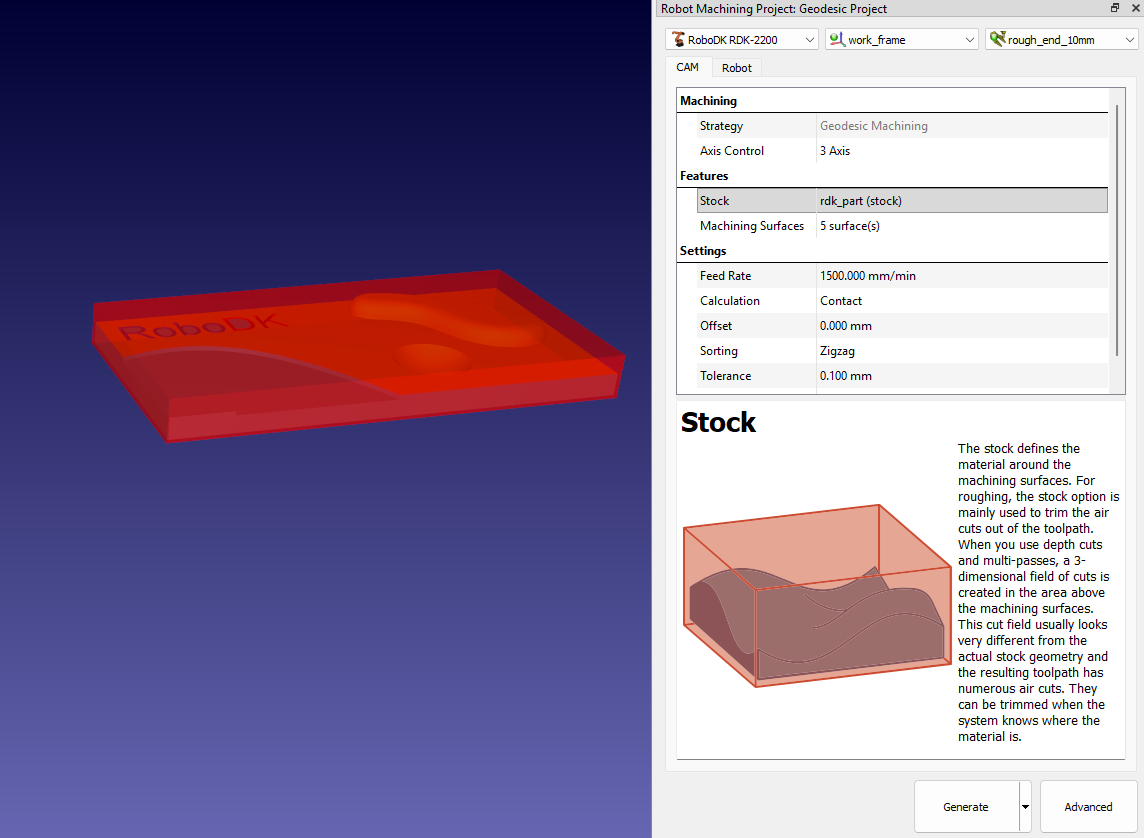
Preview: Opens the generated toolpath in a separate preview window. The window shows the toolpath, the tool and the stock (if one is defined), and you can replay the tool movements from the start. This option is available only after a toolpath has been generated successfully.
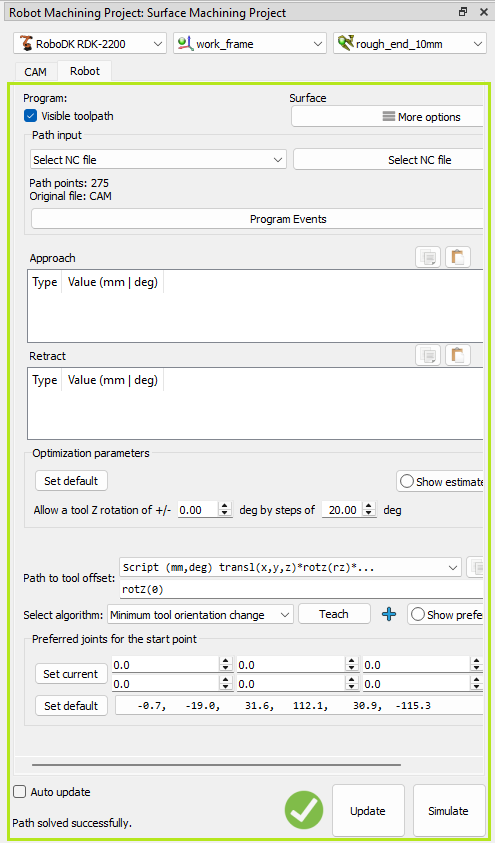
Load Project...: Loads machining parameters from a Machining Project file (*.rdkbmpf) into the current project and replaces all current strategy settings. The geometry selection (surfaces, curves, points) is not part of this file; use Load Selector Data... to restore it.
Load Selector Data...: Loads the geometry selection from a Selector Data file (*.rdkmsdf) and replaces the current selection. Objects are matched by their unique identifier, so the file only applies to the station it was saved from (or a copy of it).
Save Project...: Saves all machining parameters of the current project to a Machining Project file (*.rdkbmpf). You can load this file later in another project with Load Project....
Save Selector Data...: Saves the current geometry selection (selected surfaces, curves, points, stock and toolpath references) to a Selector Data file (*.rdkmsdf).
Export Project...: Exports the project's machining parameters to an XML file (.xml) or a JSON file (.json). The JSON file contains only the parameters that differ from the defaults. Use it for diagnostics or to send a project to support.
Reset Settings: Restores all machining parameters of the project to the default values of the current strategy, including the Program Generation options.
Alternating Row Colors: Turns alternating background colors on or off for rows in the parameter tree. The setting is remembered between sessions.
Show Tips: Shows or hides the tip panel under the parameter tree.


