Stock View
Once the stock definition is complete, the simulation stock model will be displayed on top of the other models in the RoboDK scene. You can control the view of the stock simulation using the Stock View submenu on the toolbar:
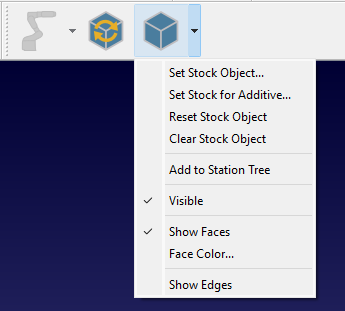
Set Stock Object – define/redefine a stock object.
Set Stock for Additive Object – define/redefine an additive stock object.
Reset Stock Object – revert the stock to its initial state.
Clear Stock Object – delete a stock object.
Add to Station Tree – copy the stock in its current state as a model into the RoboDK station tree.
Visible – stock visibility switch.
Show Faces – show stock faces.
Face Color… – set the default color for the faces.
Show Edges – show stock edges.
Note: all the stock related commands are also available from the CAM-Stock View menu.


