Surfaces–Parallel to multiple curves
The Parallel to curve option will create toolpath segments parallel to the leading curve. The neighboring toolpath segments are parallel to each other. The important point here is that the cuts won't be simply copied next to each other. Every new cut will be an offset of the previous cut.
Important notes:
1.The curve must be located exactly on the surface edge. So, the best curve would be the edge itself. This is very important for toolpath generation. If you don't have a proper leading curve aligned to edge, a wrong toolpath can be generated.
2.For independent curves on the same surface, only the first curve will be used. For more complex models, it means that it is difficult to provide the right leading curve to machine the whole model.
3.For consecutive curves on the same surface, all curves must be joined in a single curve. This step can be performed from any CAD system, or it can be made automatically by the system.
4.Multiple curves selected on independent surfaces will generate different cuts on each surface.
5.The distance between two neighboring toolpath segments is the maximum step-over.
6.You can define a margin to get the exact position where the tool is located at the edge with a certain distance.
7.With the pattern Parallel to multiple curves, it is possible to use multiple curves for multiple surfaces. Each curve will now be used only for the nearest surface.
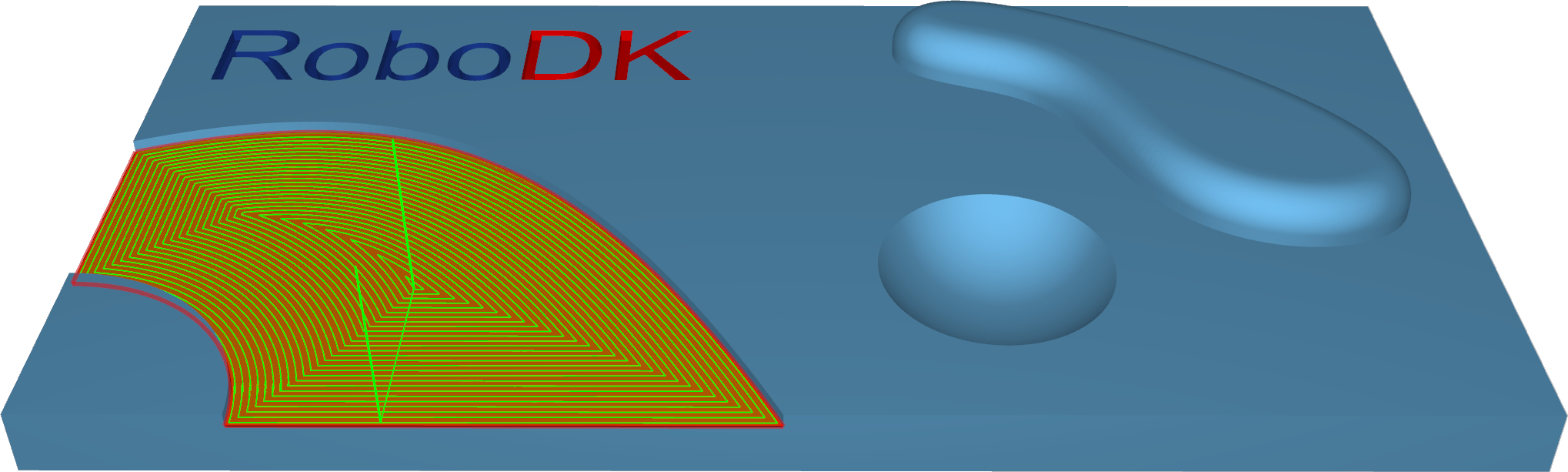
Station: CAM-Surfaces-Parlallel2MultipleCurves.


