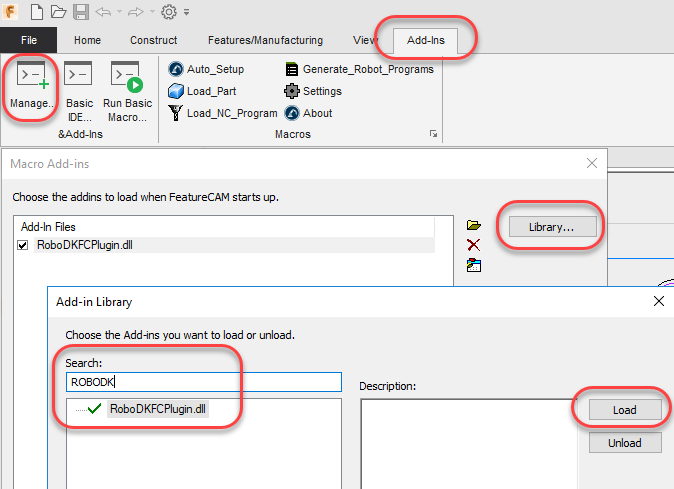
Add-In set up
If you installed RoboDK after installing FeatureCAM you should have the RoboDK plugin for FeatureCAM already in the Add-Ins library.
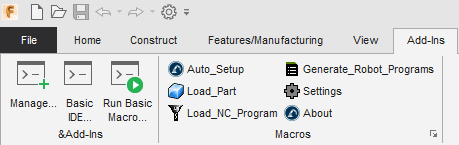
Once you activate the RoboDK Add-In you should see the macros shown in the following image.
If you don’t see the RoboDK macros, follow these steps to set up the RoboDK add-in for FeatureCAM:
1.Start FeatureCAM.
2.Select Add-Ins➔Manage
3.Select Library…
4.Look for RoboDKFCPlugin.dll library (you can type RoboDK to quickly locate it)
5.Select Load
6.Select OK.
FeatureCAM will then show the RoboDK commands in the Add-Ins section as shown in the following image.
Note: If you don’t see the RoboDKFCPlugin library you should manually copy the FeatureCAMtoRoboDK folder (located in C:\RoboDK\Other\Plugin-FeatureCAM) to the FeatureCAM install folder (located in C:\Program Files\Autodesk\FeatureCAM 2020\addins\ by default).