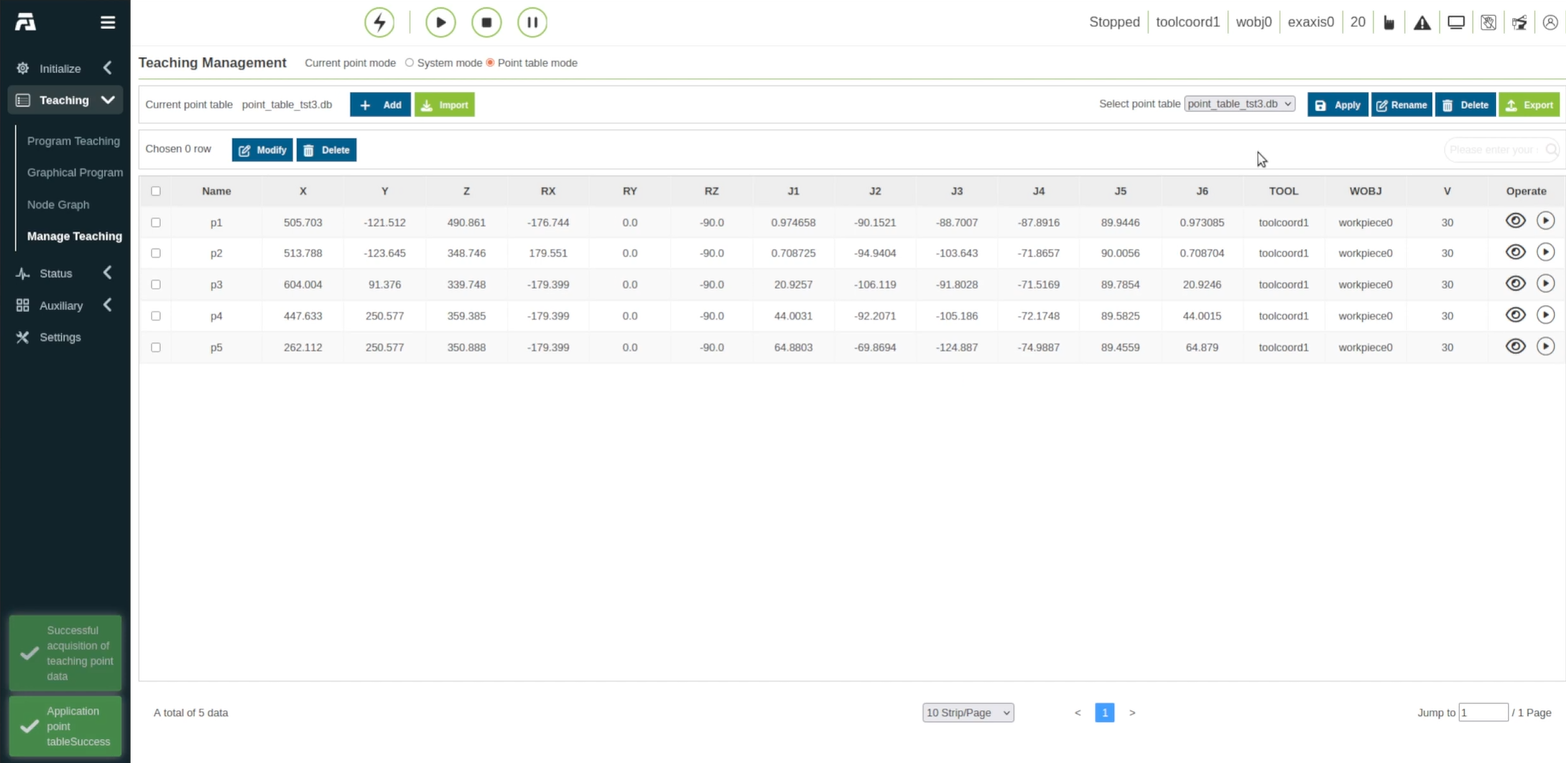
Import the Point Table
The second step is to load the point table .db file into the console. Follow these steps to import the point table.
1.On the left-hand navigation sidebar, click on Manage Teaching.
2.Under the Teaching Management view, select the Point table mode radio button at the top.
3.Click the green Import button located next to the point addition controls.
4.In the Import File popup, click Browse....
5.Select the point table database file (e.g., point_table_tst3.db) and click Open.
6.Click Import in the dialog box to finish uploading.
7.In the upper-right corner of the Teaching Management panel, locate the Select point table dropdown menu.
8.Select the imported table (e.g., point_table_tst3.db).
9.Click the blue Apply button. The point list table will populate with the imported coordinate points (p1 to p5) including their Cartesian parameters (X, Y, Z, RX, RY, RZ), joint values (J1–J6), Tool index, and Workpiece frame as shown below.