General steps
To use the Add-in, follow these steps:
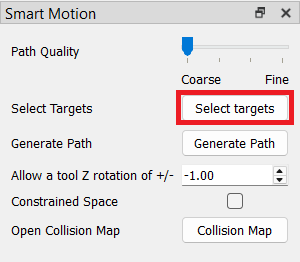
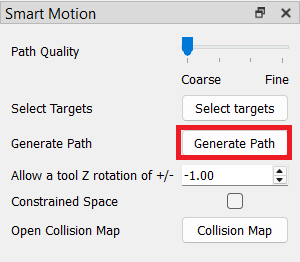
1.Open the Target selector: Click the Select Targets button in the Smart Motion menu to open the selection window. These targets define the path you want to generate.
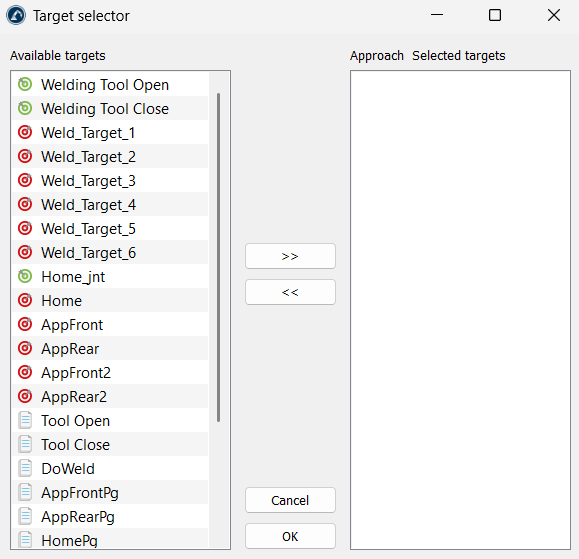
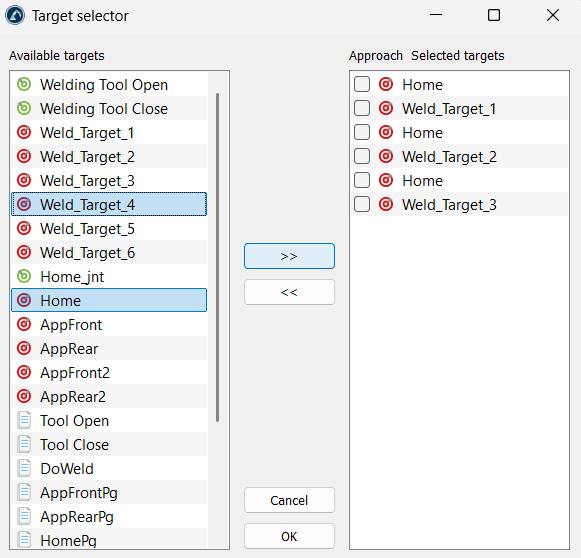
2.Choose and order the points: Select the points you want to use from the Available targets section on the left side and click the >> button to move them to the Selected targets section on the right side. You can change their order on the right side (by using drag-and-drop) to decide where the robot goes first. Once the targets are selected, you can confirm the selection with the OK button.
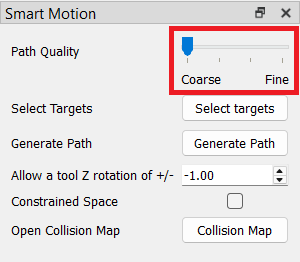
3.Pick the path quality: Move the Path Quality slider. Use Coarse for quick checks, or move it toward Fine to make sure the robot checks close spaces safely.
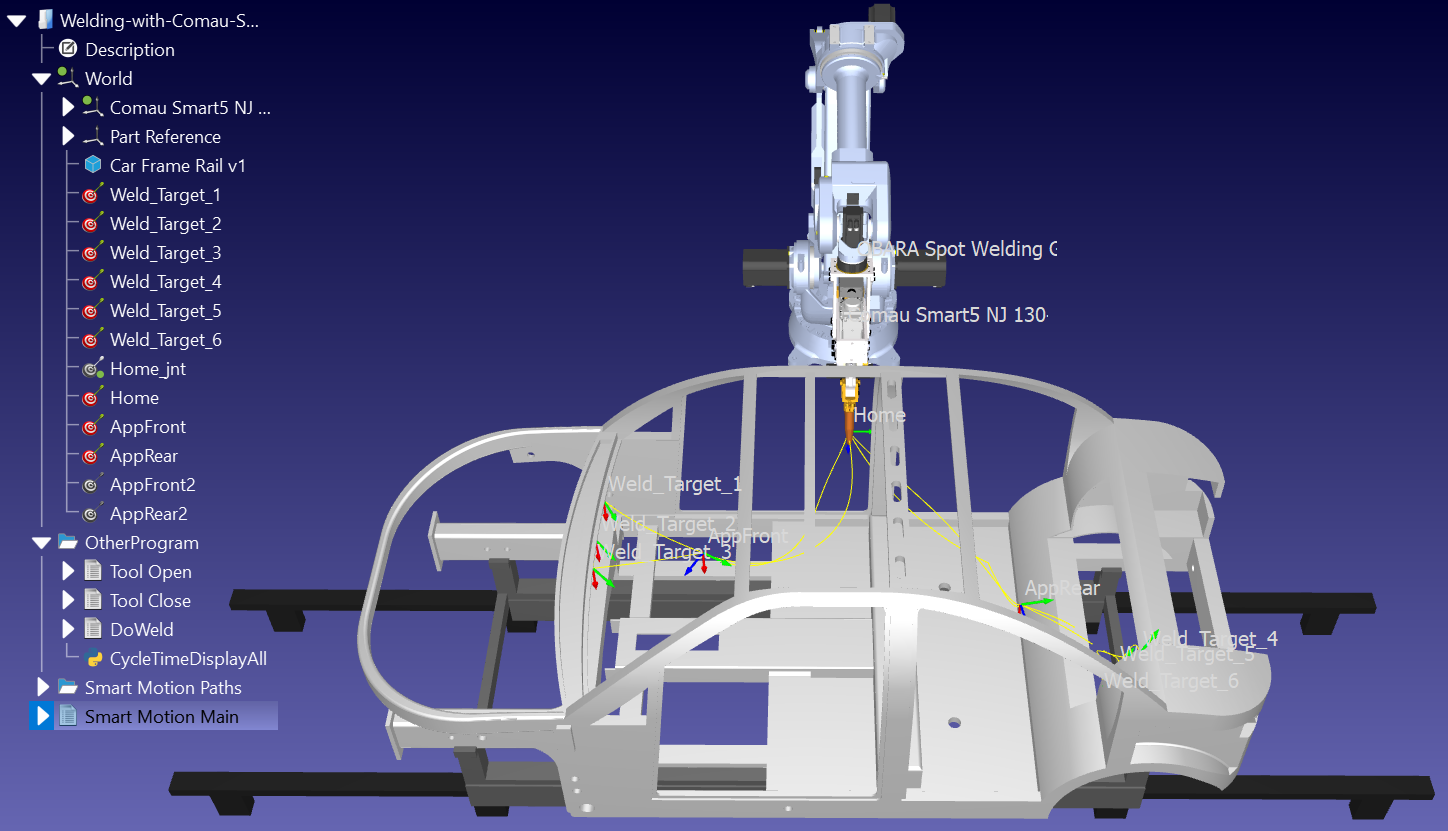
4.Create the path: Click the Generate Path button. The tool will create a safe movement between every pair of points in your list.
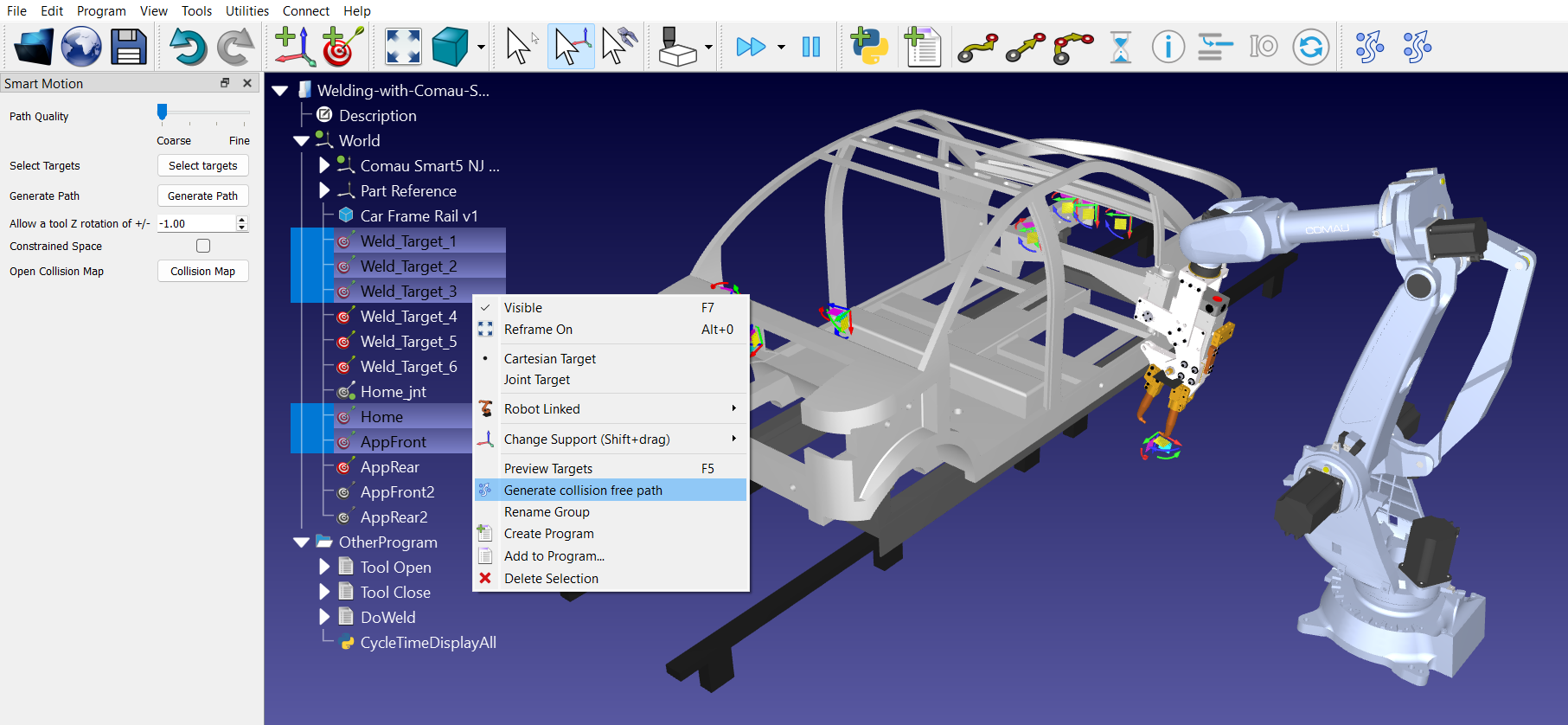
You can also "link items" by selecting multiple targets in the station tree (in required order) and clicking on the Link selected items icon in the toolbar (the second or rightmost icon of Smart Motion).


