Smart Motion extra options
The Smart Motion Add-in also features extra options in order to fine tune the solution as per our requirements. These options allow us to customize few parameters which affect the final results or the generated path.
Limiting tool rotation
The TCP rotation can be limited by using the Allow a tool Z rotation of +/- option in the menu. If the option is active, the X and Y rotations are locked while the Z rotation is limited to the value selected (e.g., +/- 45°).
This feature functions as the opposite of the Constrained Space, forcing the solver to operate in cartesian space to restrict the tool's orientation. It locks the X and Y rotations, while the Z-axis rotation can be limited to a specific degree range (plus or minus a set value). If the value of this field is set to "0", the Z rotation is also locked along with the X and Y rotations. To keep the rotations of all three axes (X, Y, and Z) unlocked, use a value of "-1" in this option.
Working in a constrained space
If Constrained Space is enabled, the robot will try to reach through a narrow opening or work in a cluttered environment. This setting forces to use the algorithm in joint space (rather than cartesian space) which ensures that the configuration tested is the configuration used. This is critical for robot morphologies where cartesian poses might result in multiple potential joint configurations, causing issues during path generation. By forcing joint space, the system ensures that the identified path is unique and collision-free.
Opening the collision map
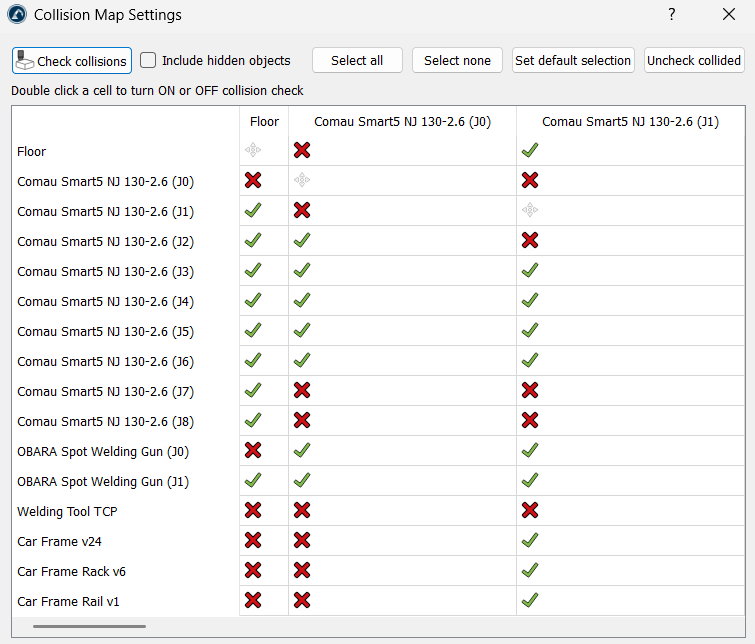
You can also open RoboDK’s Collision Map Settings by clicking on the Collision Map button in Smart Motion’s menu. A properly configured collision map ensures that the Add-in calculates a trajectory that maintains a collision-free path by referencing the collision matrix.
Simplify a generated program
The Simplify Selected Program option allows the user to reduce the number of instructions in a program while avoiding collisions. In other words, it simplifies an already created program to reduce the number of targets in the path while ensuring the path remains collision-free.
This is helpful in the following aspects:
1.Reduces Program Size: It analyses the path and removes unnecessary targets. This is vital for older robot controllers that have limited memory and can only store a certain number of lines of code.
2.Smoother Motion: By removing redundant points, you prevent the robot from "stuttering". Controllers can sometimes jerk or slow down if they receive too many commands for the same small area; simplifying the path helps the robot maintain a more constant, fluid speed.
3.Faster Execution: A simplified program often results in shorter cycle times because the robot's controller doesn't have to process as many points, allowing it to focus on maintaining the programmed velocity.
4.Cleans Up "Messy" Paths: If the program is created by recording movements or importing a dense CAD path, it might have hundreds of unnecessary points. This tool "cleans" that data while ensuring the new, shorter path still avoids all collisions.
5.Maintains Configuration Safety: Like the rest of the Smart Motion, the simplification process respects the robot's configuration. It ensures that while points are being removed, the robot doesn't accidentally try to switch its configuration (like an elbow flip) in a way that would cause a collision.
Creating movements between programs
Smart Motion is not restricted to linking targets; it can also bridge distinct standalone programs. This feature is highly useful for linking complex operations such as moving from a pick-up sequence to a machining path without manual intervention.
To use this feature, select separate program items within the Target Selector interface to calculate safe transition paths from the ending state of the first program to the entry state of the second.
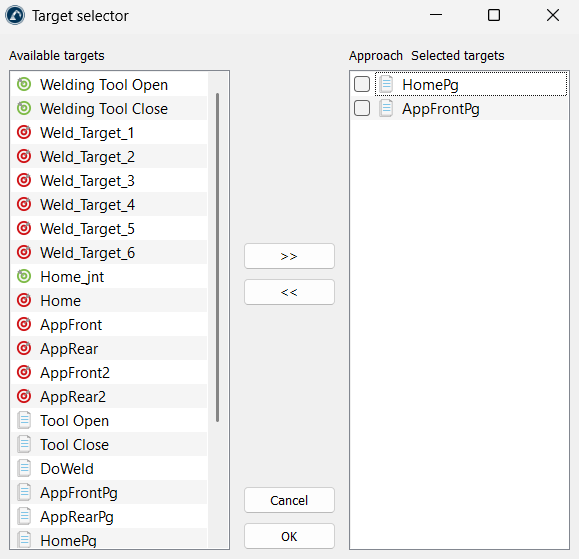
The Add-in links two programs by identifying the last move of the first program and the first move of the subsequent program, effectively generating a connecting path between them.


