
A robot virtual assistant is a perfect example of applying AI to robotics in a positive way. Virtual assistants let you work with your robot programming software through plain language instructions instead of hunting through menus, manuals, and tutorial videos. RoboDK offers two of them!
The two AI assistants in RoboDK, the RoboDK Companion Add-in and the Virtual Assistant Add-in, help you accomplish many tasks, from sending commands directly to your robot and creating targets to answering your technical questions. You can even get AI help about RoboDK through the online chat.
Together, these virtual tools help you speed up routine programming, reduce the learning curve, and make troubleshooting more efficient.
Here’s how our robot virtual assistants compare and how to use them effectively.
What Does a Robot Virtual Assistant Actually Do?
A robot virtual assistant uses artificial intelligence to comprehend all the complex information about your robot programming software, then provides that information to you in an easy-to-use conversational format.

You can think of the virtual assistant like a knowledgeable colleague sitting next to you as you program and simulate your robot. The assistant can guide you by telling you the next step in the programming process and pointing you toward other resources.
RoboDK offers two virtual assistants:
- RoboDK Companion — This add-in is built to act. It understands natural language commands, allowing you to control your simulation and program robots by typing in natural language and even speaking aloud.
- Virtual Assistant — This add-in is built to explain and guide. It uses multilingual AI to help you with any questions you have about robot simulation, programming, and automation. Together, these virtual assistants can help significantly improve your programming experience and get your robot deployment up and running as easily as possible.
How Can a Virtual Assistant Improve Robot Programming Efficiency?
Robot programming can be complex, even with intuitive software like RoboDK. Every time you can improve the efficiency of the programming itself, you create a ripple effect so that every automation project in the future becomes more efficient.
An AI tool will never replace your engineering judgment. But it can reduce or even eliminate the time that you spend looking for features within the software and learning how to perform different tasks.
Build Programs by Describing Them with RoboDK Companion
With the RoboDK Companion Add-in you can create programs step by step through natural language conversation.
Some actions you can ask for include :
- Motion Instructions — You can add Joint Move, Linear Move, or Circular Move instructions, or send the robot to its home target.
- Logic and Configuration — You can set the robot speed, add a Pause, set the Tool Frame (TCP) or Reference Frame, and set digital outputs.
- Simulation Control — You can run or pause a program, enable fast simulation mode, and turn collision checking on or off.
- Code Generation — You can ask the Companion to generate the robot program or send the program to the robot.
Programming in this way can significantly reduce programming time. For example, once you have created reference frames, moving the robot between them can be as simple as typing, “Use linear moves to move the robot between reference frames A, B, C, and D in that order. The movement from B to C should be half speed.”
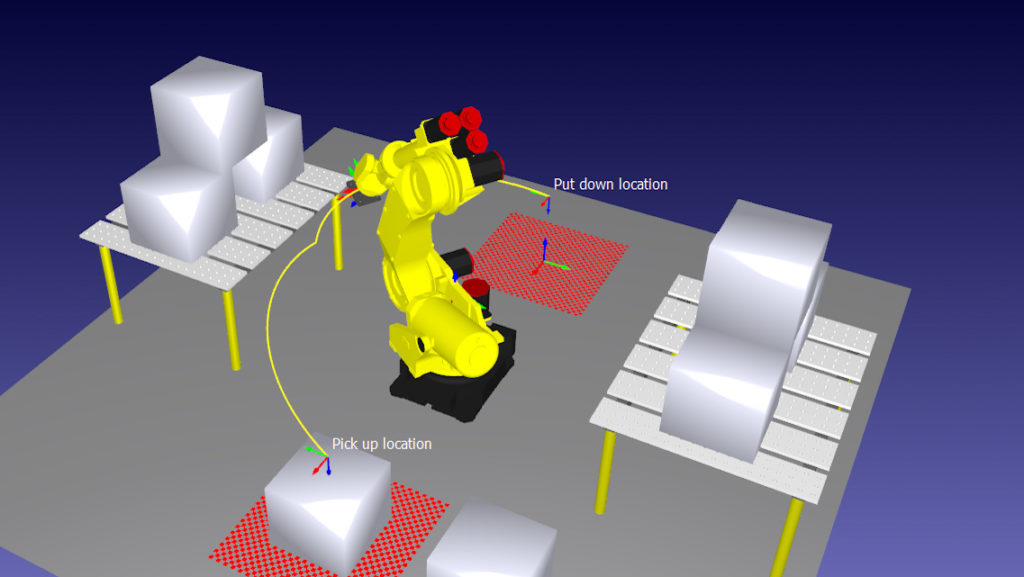
Example Walkthrough: Fixing a Path That Looks Wrong with Virtual Assistant
The Virtual Assistant is ideal when you’re looking to get a grip on the RoboDK software as a whole.
For example, perhaps you see the robot moving along a path that just looks wrong, but you’re not sure how to approach debugging the program.
By talking with the Virtual Assistant in natural language, the process might go something like this with your questions in bold and the answers in italics:
- The robot path looks wrong. What might cause this? This is usually caused by a frame or tool mismatch or a different configuration issue.
- How do I check for a tool mismatch? Check that the active tool in the program matches the TCP of the robot. You can do this by selecting the tool in the station tree, opening its properties, and checking the TCP values. If they differ, update the tool in RoboDK with the correct TCP values and recalculate the path.
- How do I recalculate the path? In the program tree, select the program and right click on it. Then choose “Update” or “Recompute” to regenerate the path.
- How can I be sure the values match with the real robot? What signs will I see? You can be confident that the values match if the simulated tool tip lands on the same point and orientation as the real robot, with no consistent offset in path or orientation. A mismatch usually shows up as the robot following the right shape but shifted, rotated, or tilted in some way throughout the program.
- Once the paths are the same what do I do? Once the simulated and real parts match, generate the robot program with the correct post processor and run it on the real controller.
Explicit instructions like these can be generated quickly, within just a few seconds. Imagine how long it would take to come up with each of these steps by reading the documentation or watching or searching through a tutorial video! You can see how the virtual assistants can really speed up the programming process.

How Do the RoboDK Virtual Assistant Add-ins Compare?
The two RoboDK virtual assistants are complementary. You can use both of them together or separately depending on your programming needs and experience.
If you’re uncertain which one to use, here is a simple table that compares the primary job of each:
| Feature | RoboDK Companion | Virtual Assistant |
|---|---|---|
| Main job | Executes RoboDK commands and builds programs | Answers questions on simulation, programming and automation |
| How you use it | Text or speech-to-text voice commands | Natural-language questions, in multiple languages |
| Knowledge source | Native RoboDK commands | Documentation, forums and blogs |
| Accessibility | Hands-free operation, high-contrast support, simplified interface | Not stated on the add-in page |
| Best for | Doing the work faster | Understanding the work faster |
How to Get Started with RoboDK Virtual Assistants
Here’s 5 ways you can get started with the RoboDK virtual assistants…
- Watch Jonathan’s Quick Tip tutorial video of how to use it.
- Both add-ins can be downloaded immediately from the RoboDK library.
- Download the add-in and install it to RoboDK with the Add-in Manager.
- Read all about the features of the RoboDK Companion Add-in on this page
- Read all about the features of the Virtual Assistant Add-in on this page.
Not sure where you should start? Try going to the online version of the Virtual Assistant chat and ask it “I’m not sure whether I should use the virtual assistant or the RoboDK companion add-in. How should I choose?” and let it guide you through an answer!
Which virtual assistant are you most excited about using? Join the discussion on LinkedIn, Twitter, Facebook, Instagram, or in the RoboDK Forum.. Also, check out our extensive video collection and subscribe to the RoboDK YouTube Channel